Introducing the GIF Importer for Premiere Pro and After Effects

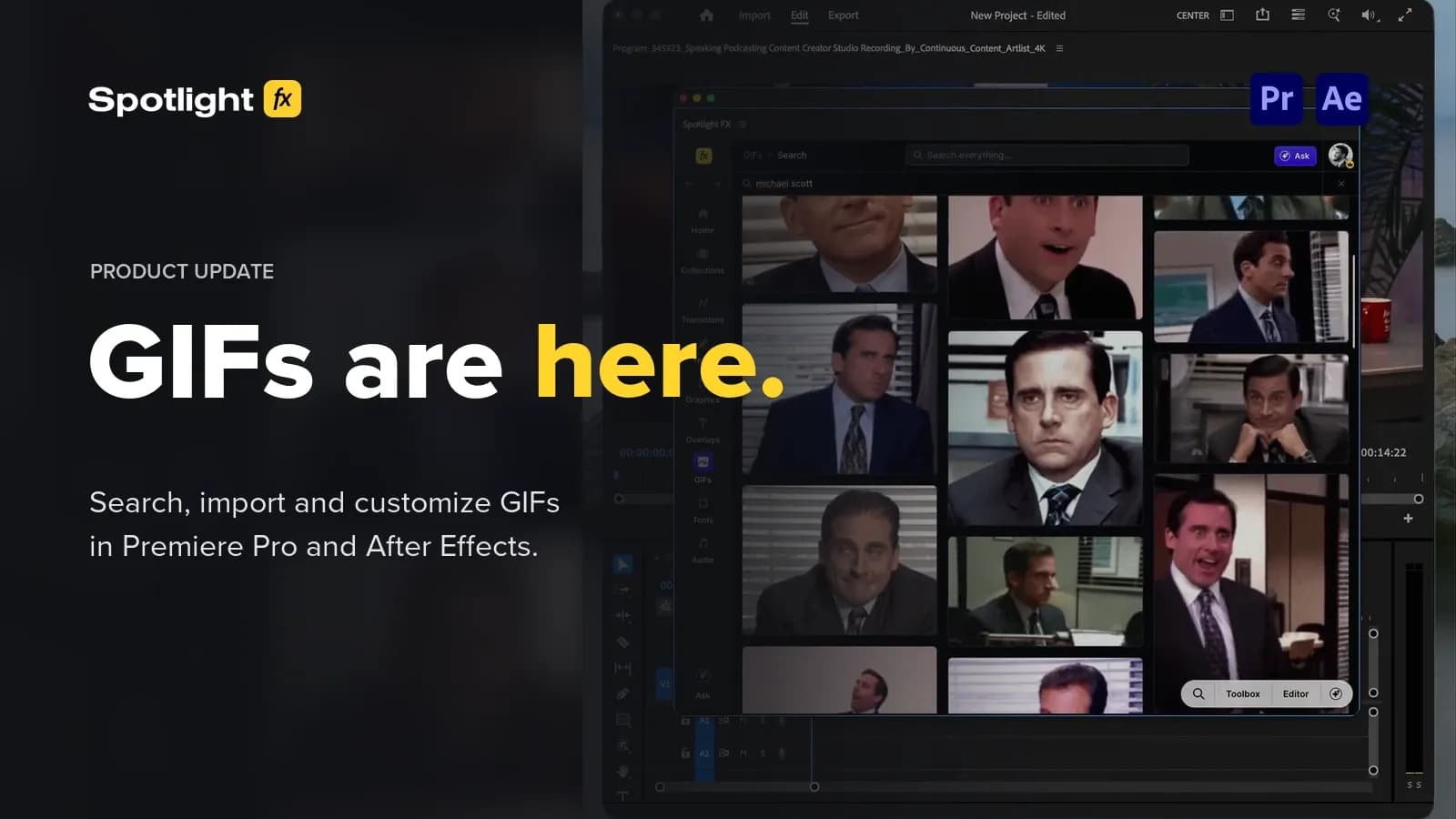
Table of Contents
- Search for the GIF you have in mind
- How to add GIFs in Premiere Pro
- Import GIFs into an After Effects composition
- Crop, resize and position your GIFs
- Loop a GIF to match the length of your edit
- Animate your GIFs
- Before you import your first GIF
- Open GIFs in Spotlight FX
- Spotlight FX - Get free transitions, effects and workflow tools
You can now find and add animated GIFs to your videos without leaving Premiere Pro or After Effects.
The GIF importer is available in Spotlight FX, with search powered by KLIPY and editing controls built into the same workflow. Add a reaction to a YouTube video, put a meme over a podcast clip or repeat a GIF through a gaming highlight. Once it's in your project, you can change its crop, size, position, loops and animation.
Search for the GIF you have in mind
Open GIFs in Spotlight FX and search for a character, a phrase or a mood. You can preview the results before importing, or browse the reaction categories when you're still deciding what to use.
If you've found the right reaction but the original GIF is too wide, too small or too short for your video, you can adjust those things after importing it. You don't have to find another version just to change the framing or repeat it.
How to add GIFs in Premiere Pro
- Open Spotlight FX, sign in and save your Premiere Pro project.
- Open the sequence you're editing and move the playhead to where you want the GIF to start.
- Choose GIFs, search for a GIF and click Import.
- Select the imported GIF to open its settings and adjust it for your video.
Spotlight FX downloads the GIF and adds it to your active sequence at the playhead. You don't need to download it from a browser or convert it to MP4 yourself first.
Import GIFs into an After Effects composition
In After Effects, choose the composition you want to work in before importing. Save the project, set the playhead to the right time, then find your GIF in Spotlight FX and click Import.
The GIF is added to the active composition at that time. You can use it beside animated text, include it in an explainer or build a reaction into a motion graphic. Select it to change its settings while you work on the rest of the composition.
The recordings in this post show Premiere Pro. GIF importing and editing are also available in After Effects.
Crop, resize and position your GIFs
Keep the part of the GIF you need
Drag the crop handles in the preview to remove unwanted parts of the image. You might keep just a person's face for a reaction or crop out empty space around the subject. You can reset the crop if you want to return to the original framing.
Fit the whole GIF or fill the frame
Use Fit to keep the full GIF visible, or Fill when you want it to cover the frame. The Zoom control lets you adjust its size further, whether it's a full-screen cutaway or a small overlay beside your footage.
Choose where the GIF appears
Use the alignment controls to place the GIF in the center, at an edge or in a corner. There are nine positions to choose from, so you can move a reaction away from someone's face or leave room for a heading.
Loop a GIF to match the length of your edit
A GIF doesn't have to end after its first play. Change Loops to repeat it and see the resulting length in the settings.
For a quick reaction, one loop might be enough. If the GIF needs to stay on screen while someone finishes a sentence, increase the count until it covers that part of the video.
Animate your GIFs
Enable Animation and choose Scale, Fade or Fade + Scale. You can adjust the duration and easing to change how the animation plays.
Turn on Split In / Out when you want different settings at the start and end. For example, a GIF can fade in quickly and fade out more slowly. These controls sit alongside the crop, size and loop settings in Spotlight FX.
Before you import your first GIF
Save your Adobe project before importing. Spotlight FX stores the downloaded media in a Spotlight FX/GIFs folder beside the project, so keep that folder with it when moving the project to another location. You'll need to be signed in and connected to the internet to search for and download new GIFs.
GIFs can contain material owned by other people. A Spotlight FX purchase doesn't grant rights to every GIF in the library. Check the content rights for your intended use, particularly for client work or ads, and refer to the provider's terms.
Open GIFs in Spotlight FX
The GIF importer is available now for Premiere Pro and After Effects. If you already use Spotlight FX, open GIFs and search for something you want to use in your next edit. You don't need a separate GIF extension.
Download Spotlight FX, or see the full workflow for Premiere Pro and After Effects.