.jpg&w=48&q=75)
Table of Contents
If you edit in Premiere, you already know how much time disappears into small, repetitive tasks that should take seconds but somehow take minutes. Zoom animations are one of the worst offenders.
Introducing Zoomy
Zoomy is a zoom animation tool built specifically for Premiere. It lives inside the Spotlight FX Toolbox and it does one thing really well: professional zoom animations with smooth easing and motion blur, applied in a single click.
No keyframing. No Transform effect setup. No manually dragging Bezier curves until the animation feels right. You set your zoom, hit the button, and it's on your timeline.
What You Can Control
The zoom range goes from 1x to 3x. Speed options are Slow, Normal, Fast, Instant, Over Time, and Custom. Animation styles are Linear, Smooth, Explosive, Bounce, and Custom. That covers pretty much every zoom you'd want in a real edit.
Before you apply anything, hit Load Preview Frame and Zoomy loads your actual footage into the preview window. You see exactly how the zoom will look before committing. No guessing, no applying and undoing.
Advanced Zoom Sequences
This is the part that makes Zoomy genuinely different from just doing it manually. You're not limited to a single A to B zoom. You can chain as many zoom states as you want in a sequence, and each one can have a different zoom level and a different position. In seconds!
Every zoom point gets a marker on your timeline automatically. So when you're looking at a sequence with five or six zoom states, you can see exactly where each one lives without scrubbing through the whole clip.
Extra Effects You Can Layer On
Once your zoom is set, you can add effects on top of it to push the look further:
- Motion Blur - controls how intense the blur is during the zoom movement
- Sharpen - adds sharpness at the peak of the zoom, so the frame snaps into focus
- Defocus During Zoom - adds a slight defocus as the zoom moves, like a lens breathing
- Target Focus Blur - blurs everything except the focal point of the zoom
- Handheld Movement - adds subtle camera shake during the zoom, makes it feel more organic
- 3D - adds a slight 3D tilt when zoomed in
Each effect has four levels: Off, Normal, High, and Custom. You can combine them however you want. A Smooth zoom with Motion Blur on High and a bit of Handheld Movement feels completely different from an Explosive zoom with Sharpen and 3D. Same tool, very different results.
It Stays Off Your Footage (If You Want)
If you have multiple clips in a sequence and want the zoom to sit above all of them without touching the original footage, hit Create Layer. Zoomy will create an adjustment layer above your timeline and apply everything there instead.
It's a small thing, but it gives you a cleaner, non-destructive setup. Remove it, adjust it, or swap the zoom style later without digging through clip-level effects. Everything stays on the adjustment layer, separate from your footage.
Save Zooms You Like
When you find a combination that works, it saves to the Saved Zooms dropdown automatically. Next time you need that same style, click it and all the settings load instantly.
If you're working on a series, a client project, or any content where consistency matters, this is genuinely useful. Set your zoom style once, save it, and apply it everywhere without reconfiguring anything.
How to Find Zoomy
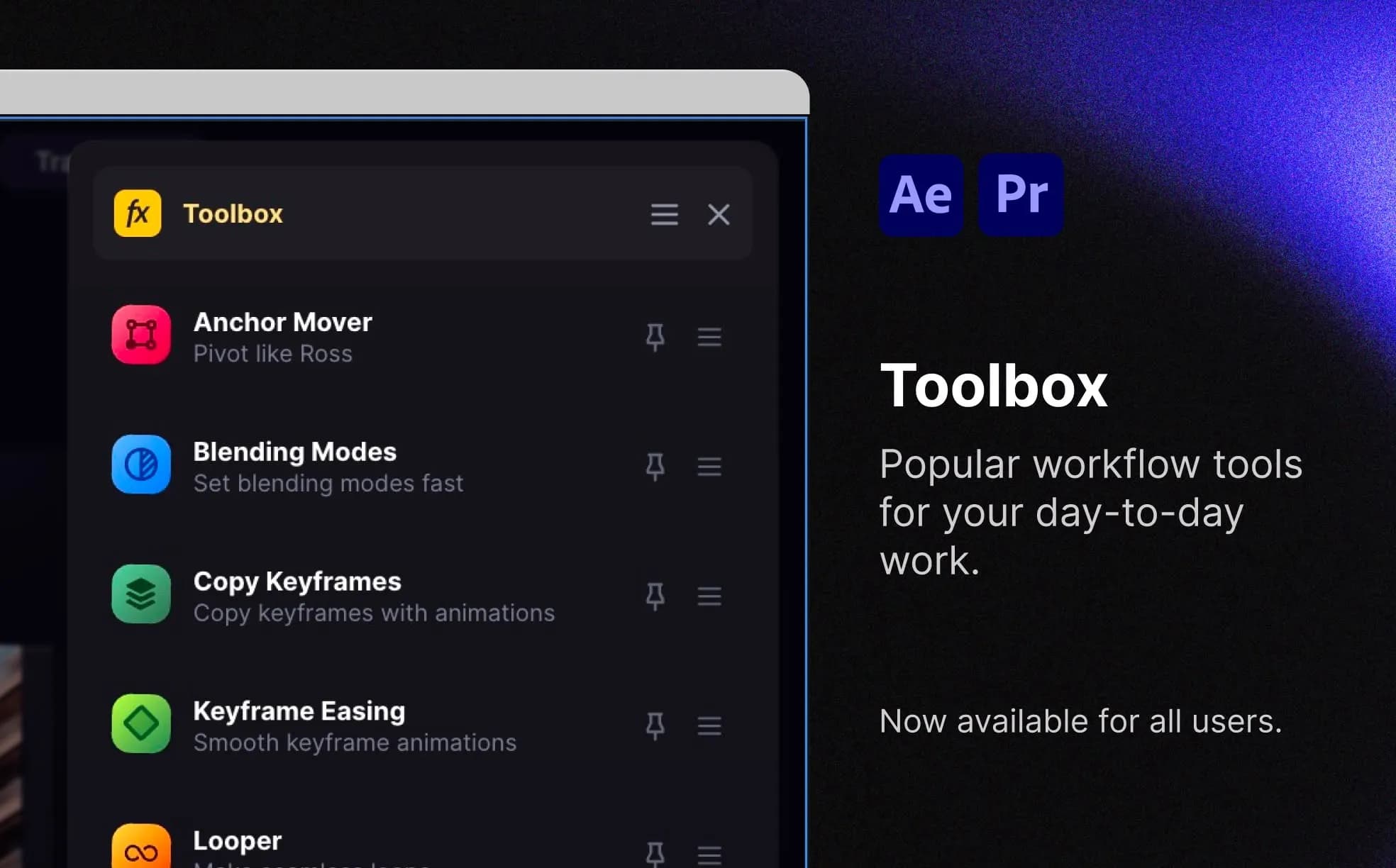
If you're already on Spotlight FX, open the plugin inside Premiere. Click the Toolbox button in the bottom right corner of the panel. Zoomy is listed there alongside the other tools.
Zoomy is live right now for all Spotlight FX users, including the free plan.
Give It a Go
Open the Toolbox, try it on your next project, and see how it feels compared to doing it manually. If you have feedback, run into a bug, or want something added, reply in Discord or hit the chat bubble inside the app.