.jpg&w=48&q=75)
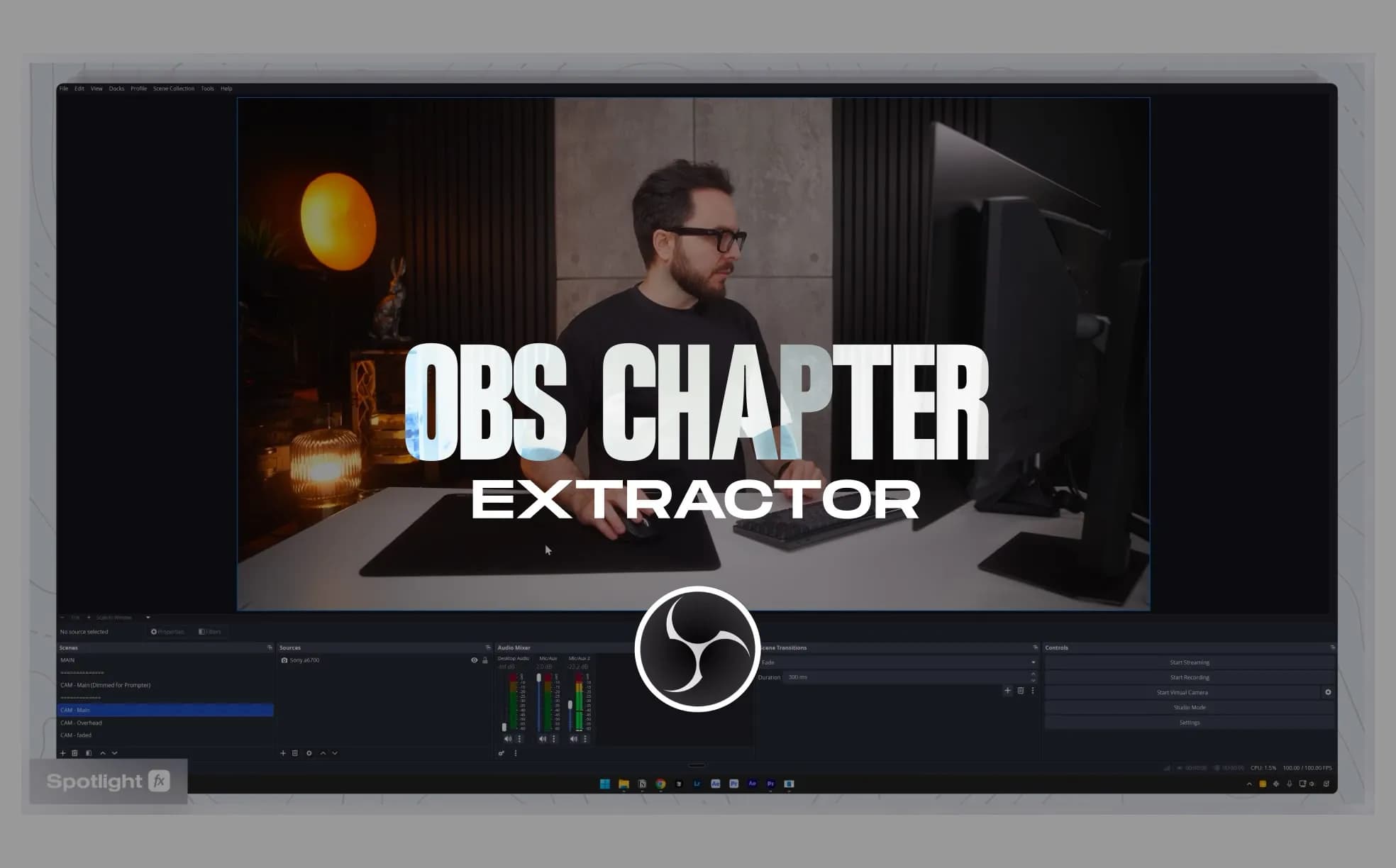
Table of Contents
I've been editing a lot of stream recordings lately, and the worst part is always finding specific moments in 3-hour files. You know the drill: scrub, guess, miss it, scrub back, repeat. So we built a script that fixes that.
What It Does
OBS Chapter Extractor pulls chapter markers from your OBS recordings and drops them straight into your Premiere Pro timeline.
You set markers while recording (with a hotkey), and this script converts them into timeline markers or regions. No more hunting through footage. Your markers become your edit map.
How to Set It Up in OBS
First, you need to configure OBS to support chapter markers.
Open OBS and go to Settings, then Output, then Recording. Change your Recording Format to either Hybrid MP4 or Hybrid MOV. This is required. Regular MP4 or MOV won't work because they don't support embedded chapter data.
Next, set up a hotkey. Go to Settings, then Hotkeys, and search for "Add chapter marker." Assign whatever shortcut makes sense for you. I use Ctrl+Alt+L because it's easy to hit mid-recording without thinking.
Now when you're recording, just hit that hotkey whenever something important happens. Got a funny moment? Hit the key. Something broke? Hit the key. You'll thank yourself later.
How to Extract Markers in Premiere Pro
Import your OBS footage into Premiere like normal.
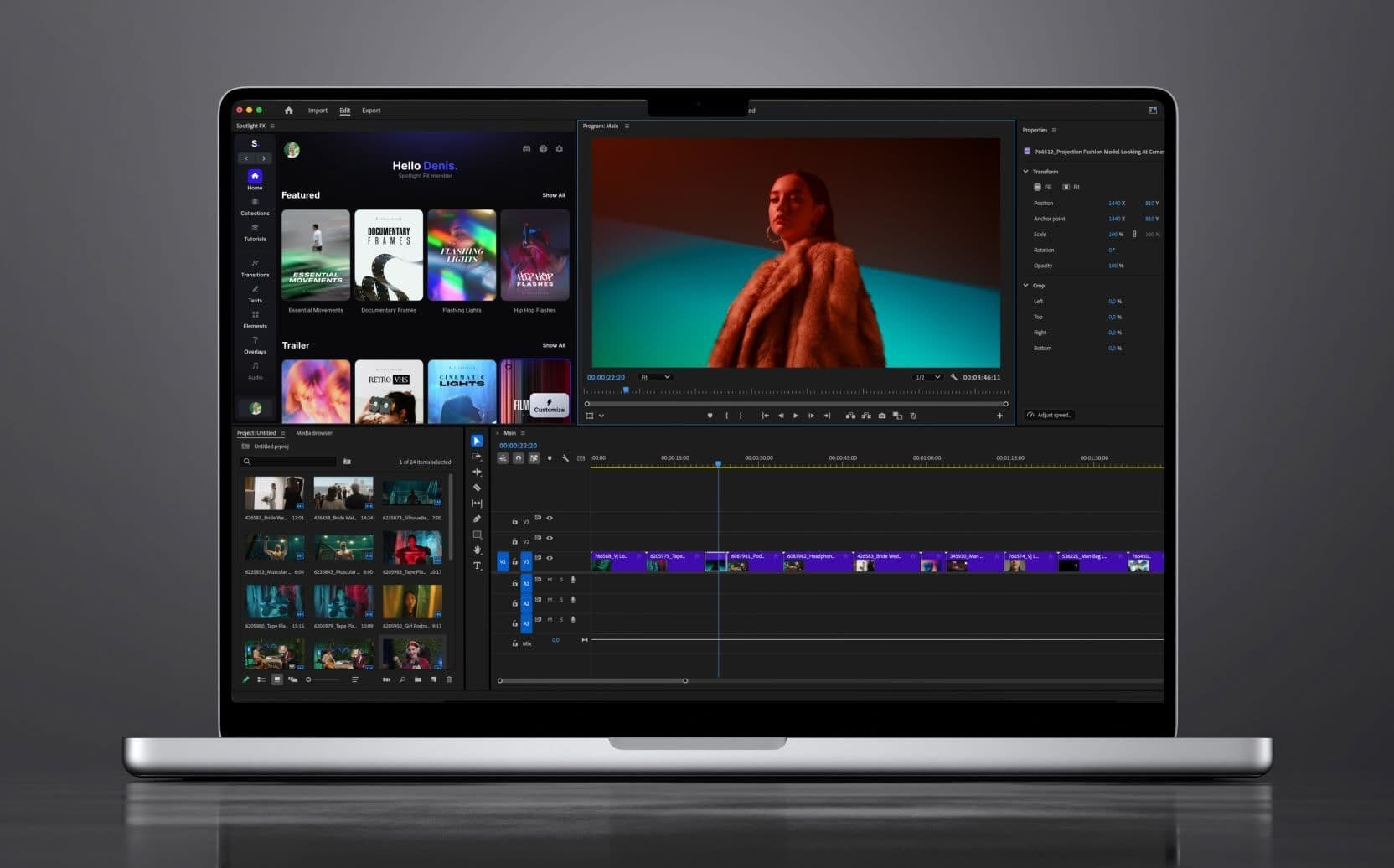
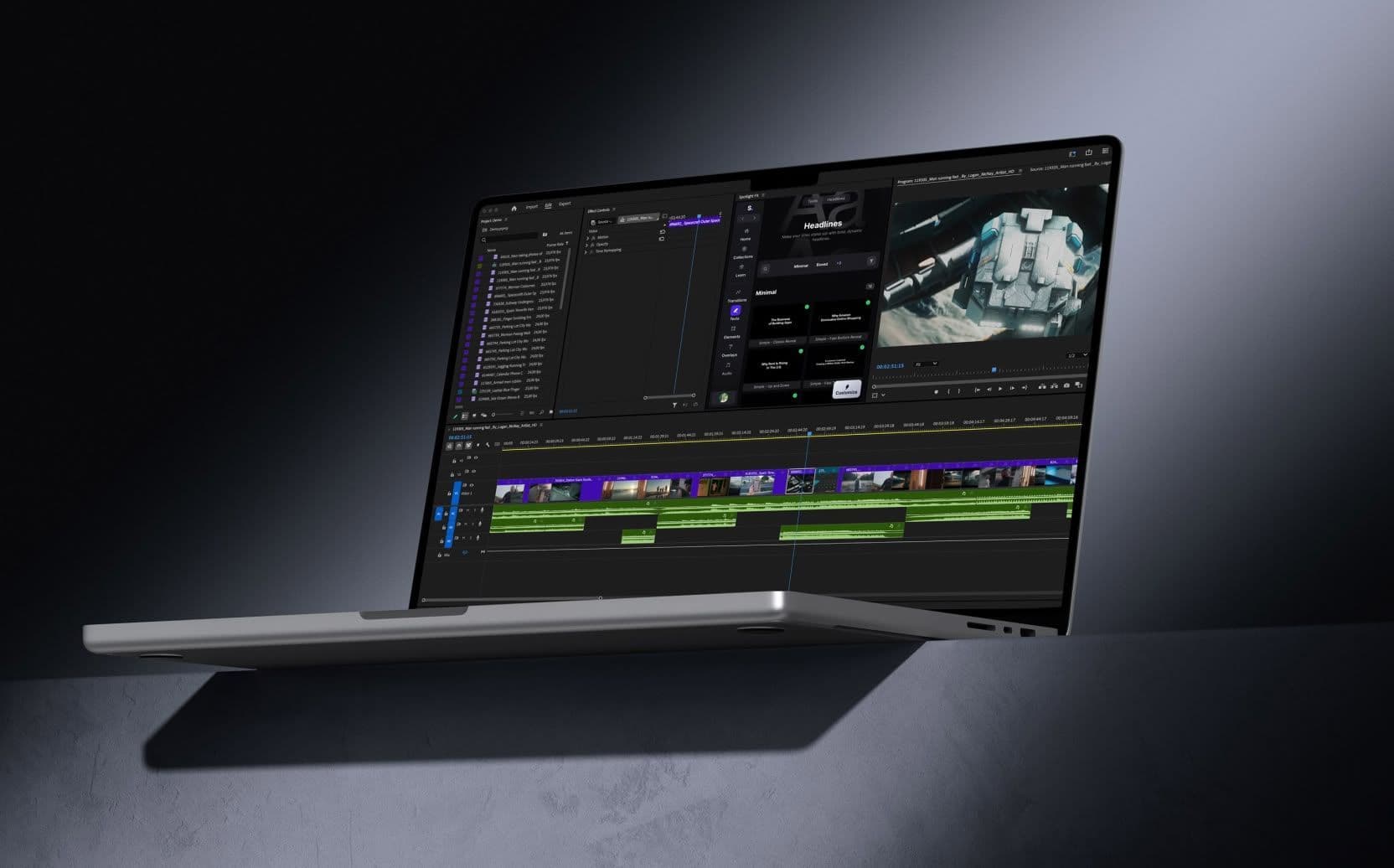
Open Spotlight FX, go to the Toolbox, and click OBS Chapter Extractor. If it's your first time using it, you'll need to install some dependencies (it takes a few seconds).
Select your OBS clip on the timeline and hit Extract. You can choose between markers or regions. Markers are single points you can snap to. Regions are visual blocks that show the span between markers. I prefer markers, but it depends on how you work.
Once extracted, your timeline will have markers exactly where you pressed that hotkey in OBS. Hold Shift and scrub, and your playhead will snap right to them.
Why This Actually Helps
If you're editing streams, podcasts, or any long-form content recorded in OBS, this changes how you work.
Instead of scrubbing blind or writing down timestamps on paper, you just mark moments as they happen. Then when you sit down to edit, everything's already tagged. You're not hunting. You're just jumping between the parts that matter.
It's especially useful for gaming content. Mark every highlight during the stream, then extract them in Premiere and cut a montage in minutes.
It's Free
This script is part of the Spotlight FX Toolbox and it's completely free for Premiere Pro users. No watermarks, no limitations. Just download it here and start using it.
If you run into any issues or have ideas for how to make it better, let me know. Reply on Discord, shoot me an email, or hit the chat bubble in the app.
Thanks for being here.
Tom