How To Use Film Burn Transitions
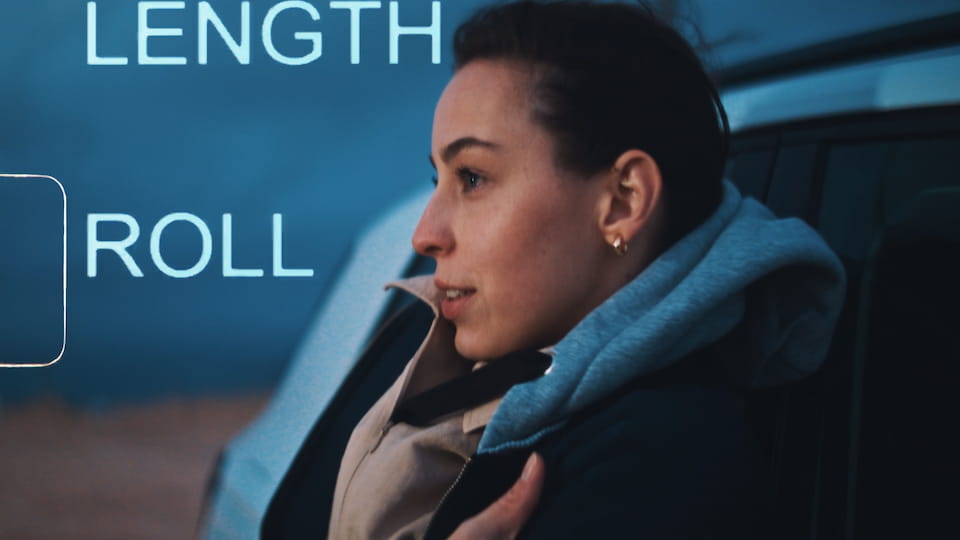
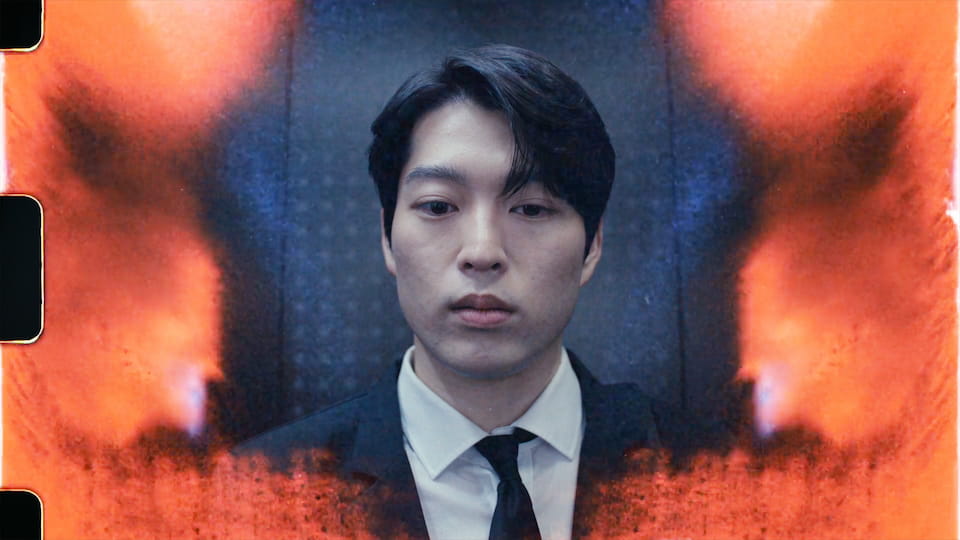
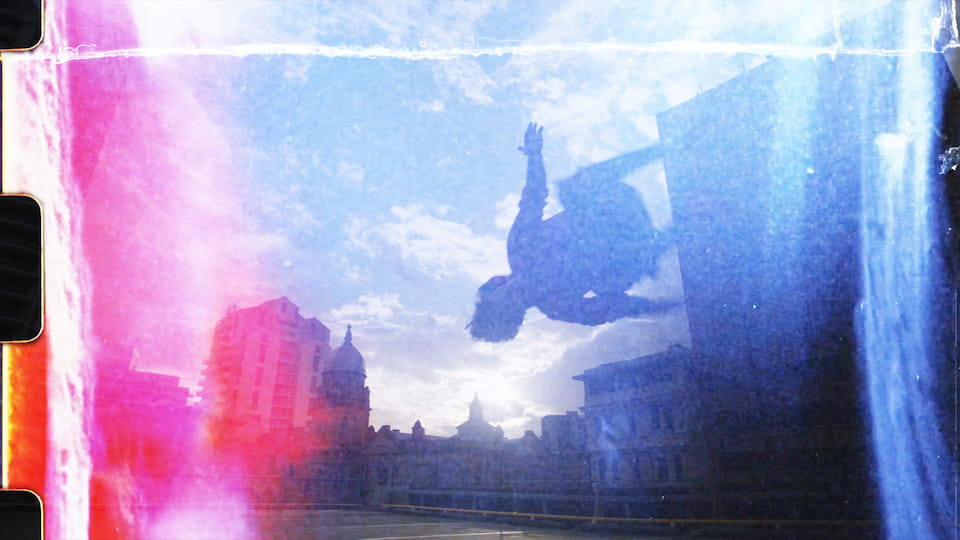
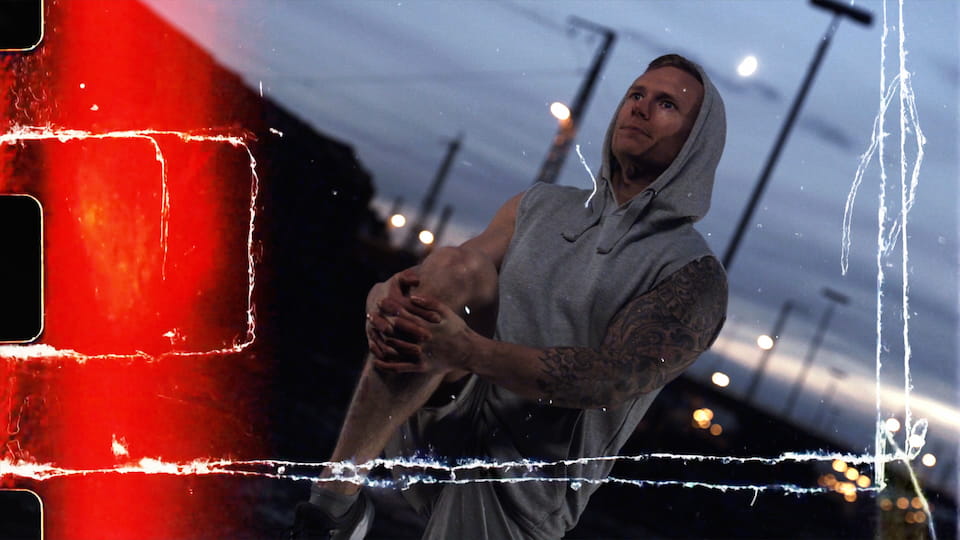
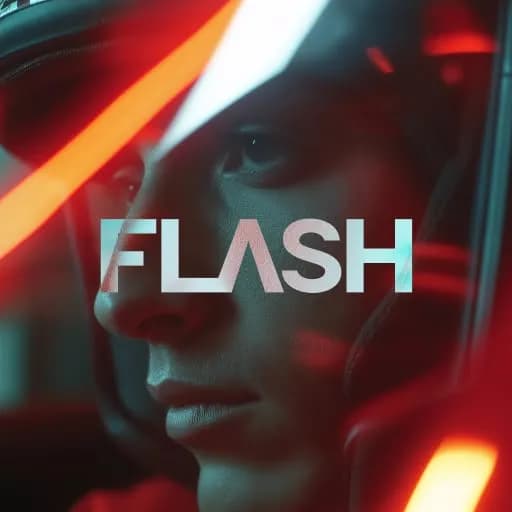
This tutorial shows how to use film burn transitions in Spotlight FX for Premiere Pro and After Effects. You'll learn how to import real scanned film textures, stack multiple burns for complex transitions, and customize brightness, contrast, saturation, and flip settings. Film burns can be imported with or without clip selection, and they auto-place based on your playhead position or selected footage. You can combine multiple film burns on top of each other to create unique, layered transitions. All 20 film burn styles are found inside the Flash plugin and work the same way in both Premiere Pro and After Effects, so your workflow stays consistent.
Templates used in this tutorial
These are the exact items we used in this tutorial so you can easily import them to your timeline.
Supports one-click import into Premiere Pro
transition

Supports one-click import into Premiere Pro
transition

Supports one-click import into Premiere Pro
transition

Supports one-click import into Premiere Pro
transition

Supports one-click import into Premiere Pro
transition

Supports one-click import into Premiere Pro
transition

Plugins used
These are the plugins we used in this tutorial.
See How It Works
Learn how easy it is to follow along with our tutorials and create amazing videos.
1

1. Import
Imports happens automatically, no manual setup needed.
2

2. Customize
Every item is fully customizable to match the look of your project.
3

3. Render
Preview the results and export your finished video.
Recreate Any Video Style
with Spotlight FX
With Spotlight FX, you have access to a full library of customizable templates & tools, so you never have to start from scratch again.
Frequently
Asked Questions.
Yes. You can earn up to $50 per sale by referring customers to Spotlight FX. You get a unique link, share it wherever you want, and we handle tracking and payouts.
Absolutely, please do. We build collections based on what Premiere Pro editors actually need for their projects, not random asset dumps. If you're editing a specific type of content and need a matching set of assets, reach out directly. We prioritize requests that solve real editing problems for creators in our community.
Categories sort by item type (transitions, titles, graphics, overlays). Collections sort by visual style or video genre. Use categories when you know you need "a transition." Use collections when you want "everything for a travel vlog" or "a complete corporate look." Categories answer "what," collections answer "what style."
Yes, collections grow as we add new items. When we create something that fits a collection's style, it automatically appears there. Because Spotlight FX is cloud-based, you'll see these additions immediately without downloading updates or reinstalling anything. Your library stays current without effort on your part.
Yes, mix freely. Collections organize items by style for convenience, but you're not locked into using one collection per project. Pull a transition from one collection, a title from another, and graphics from a third. Build your edit exactly how you envision it, using collections as starting points.
Open any collection in Spotlight FX to see what's inside. Browse the items (transitions, titles, graphics, etc.), then double-click to add them directly to your Premiere Pro sequence. Each item lands on your timeline ready to customize through the Essential Graphics panel. No importing, no file management.
We started Spotlight FX to make editing faster and more fun for creators like you. If something doesn't work as expected, or if you just want to ask a question, don't hesitate to message us. We personally read and reply to every note that comes through.

Save hours on every edit
Download Spotlight FX and start creating amazing videos in no time
Get Spotlight FX


.jpg&w=3840&q=100)