How to Preserve Your UI Layout When Opening a New Project in After Effects

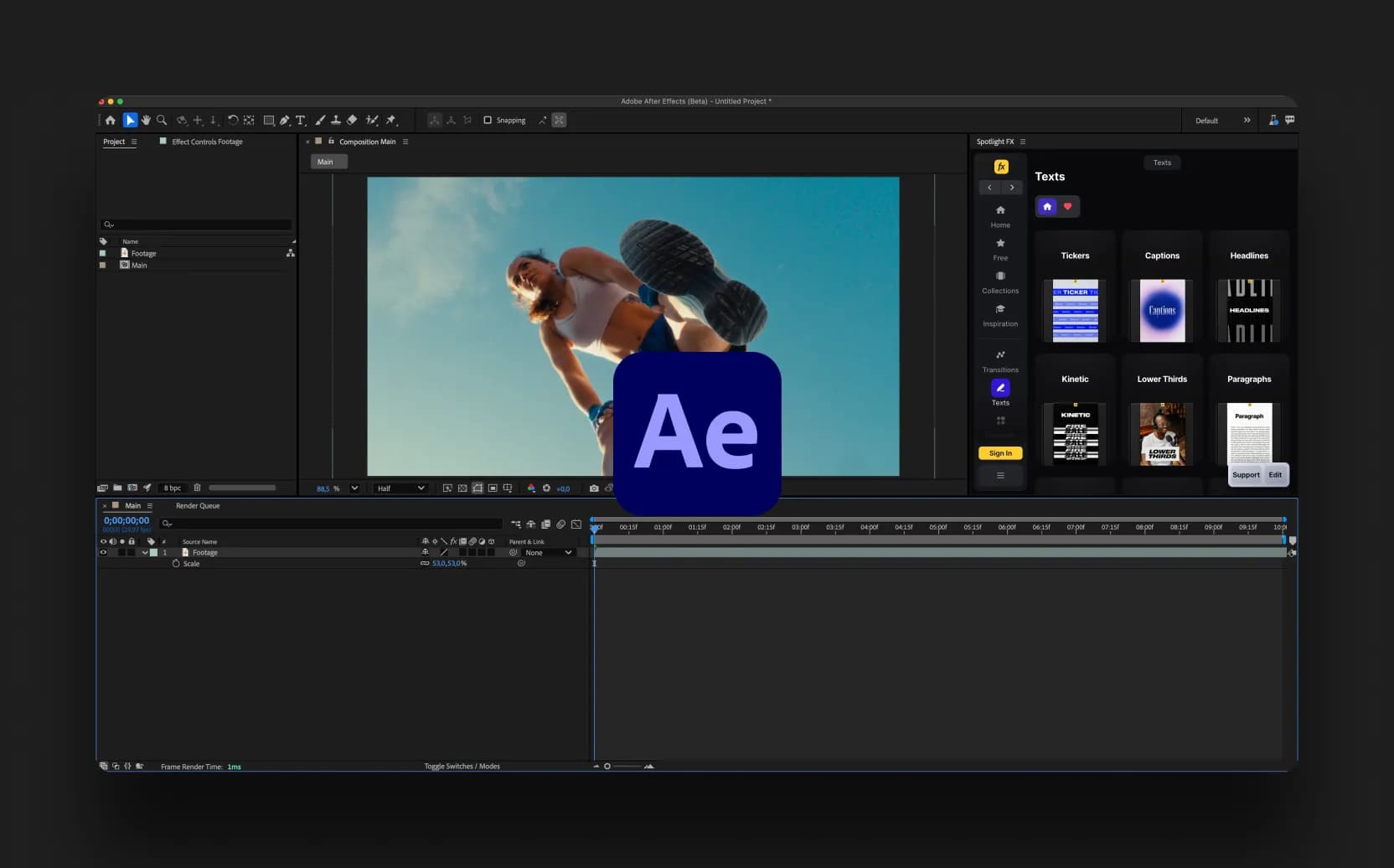
Table of Contents
When someone saves an After Effects project, the workspace layout they were using at the time gets embedded into that project file. So when you open it, After Effects loads that saved workspace instead of yours.
The good news? After Effects 2026 (and the beta before it) shipped a dedicated preference that fixes this completely. One toggle, and your workspace stays yours, no matter what project you open.
Here is exactly how to turn it on.
Step 1: Open After Effects Preferences
First, open your Preferences panel.
- On Windows: go to Edit > Preferences > Project
- On macOS: go to After Effects > Settings > Project
You can also use the keyboard shortcut Ctrl + Alt + ; (Windows) or Cmd + Option + ; (Mac) to open Preferences, then navigate to the Project tab from the left-hand menu.
Note: This preference is available in After Effects 2026 and later, as well as the After Effects Beta version 25.2.0.88 and above. If you do not see the option described in the next step, make sure your app is up to date.
Step 2: Find and Enable "Maintain Current Workspace" Option
Once you are inside the Project section of Preferences, look for the checkbox labeled:
"Maintain Current Workspace When Opening Projects"
It is straightforward to find since it sits directly in the Project preferences tab without being buried in any sub-menus.
Step 3: Test It by Opening a Different Project
To confirm everything is working, try opening a project that was saved with a different workspace layout. This could be a template you downloaded, a file from a colleague, or any project you know was created with a different panel arrangement.
Your workspace should remain exactly as you left it. The panels stay in place, the layout does not shift, and you can get straight to work.
Save Your Custom Workspace (Optional but Recommended)
Now that your layout is protected when opening projects, it is worth taking one extra step to make sure your workspace is properly saved on your end as well.
Go to Window > Workspace > Save as New Workspace..., give it a name, and save it. This creates a named workspace you can always return to with a single click, even if something does shift unexpectedly down the line.
Saved workspaces are stored locally in your After Effects preferences folder:
- Windows: C:\Users\[username]\AppData\Roaming\Adobe\After Effects\[version]
- macOS: /Users/[username]/Library/Preferences/Adobe/After Effects/[version]
Knowing where these files live is useful if you ever want to back up your layout or transfer it to another machine.
Final Thoughts
This is one of those quality-of-life improvements that sounds small but makes a real difference over the course of a workday. If you regularly open projects from other people or work with downloaded templates, you have probably lost more time to workspace rearranging than you realize.
The fix is simple: open Settings > Project, check "Maintain Current Workspace When Opening Projects", and you are done. Your layout stays yours, every time.
If you are looking for more ways to speed up your After Effects workflow, tools like Spotlight FX are built exactly for that. From one-click anchor point adjustments to instant access to professional assets directly in your timeline, it is designed to cut out the repetitive, time-consuming parts of editing so you can focus on actually creating.
.jpg&w=3840&q=75)