What Is Bitrate? A Simple Explanation for Video Editors


Table of Contents
- Why bitrate matters for video
- How bitrate works
- What are the key types of bitrate?
- How to choose the right bitrate for your exports
- What bitrate is best for YouTube?
- Bitrate vs. resolution: what's the difference?
- Does higher bitrate always mean better quality?
- What causes low bitrate problems in video?
- What is a good audio bitrate?
- Does bitrate affect editing performance?
- Final thoughts
- Spotlight FX - Get free transitions, effects and workflow tools
Bitrate is the amount of data used to represent one second of video or audio, usually measured in megabits per second (Mbps) for video and kilobits per second (kbps) for audio. In short, higher bitrate means more data per second, which usually means better quality and a bigger file size.
That's the whole idea in one sentence. But if you've ever exported a project and wondered why your crisp footage turned into a blocky mess on YouTube, or why your file was suddenly 40 GB, bitrate is the answer.
Why bitrate matters for video
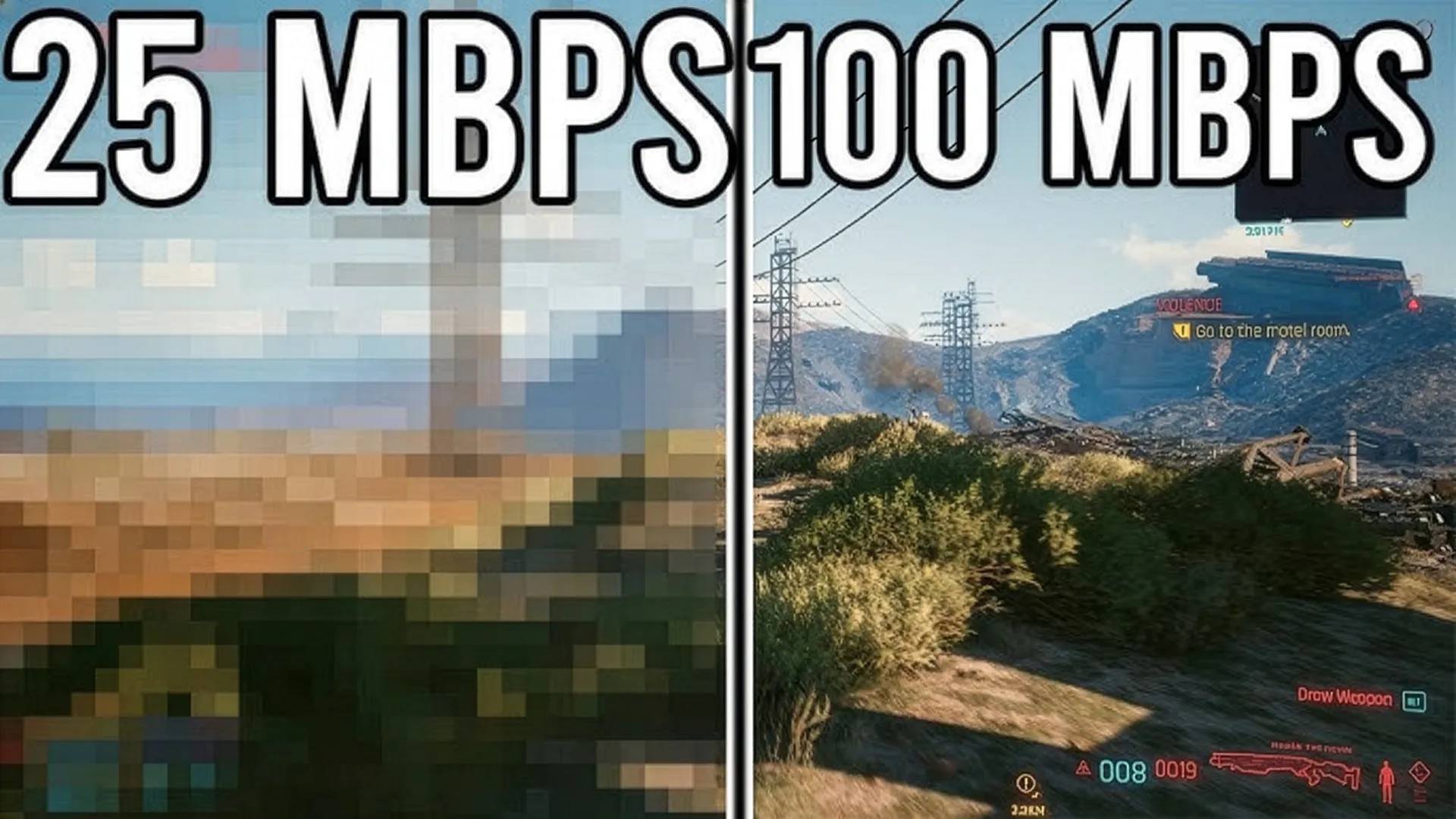
Bitrate is the single biggest factor in the balance between video quality and file size. Set it too low and your footage falls apart: you get blocky compression artifacts, banding in skies and gradients, and smeared detail during fast movement. Set it too high and you end up with massive files that take forever to upload, eat storage, and may even get re-compressed by the platform anyway.
For editors, this matters at every stage. Your camera records at a certain bitrate, your editing timeline handles that data, and your final export bakes in a bitrate that decides how good the video looks when someone presses play on YouTube, Instagram, or a client's screen.
Get it wrong and all your careful color grading, transitions, and motion graphics can look muddy and amateur. Get it right and your work looks exactly as polished as it did in your timeline. That's why understanding bitrate is one of the most practical pieces of knowledge an editor can have.
How bitrate works
Video is just a sequence of frames, and each frame is made of pixels. Bitrate controls how much data gets allocated to describe those pixels every second.

Think of it like water flowing through a pipe:
- High bitrate = a wide pipe. Lots of data flows through, so the video keeps fine detail and handles motion cleanly.
- Low bitrate = a narrow pipe. The encoder has to throw away data to fit through, so quality drops and artifacts appear.
When you export, your editing software uses a codec (like H.264 or H.265) to compress the video to your chosen bitrate. The codec decides what data to keep and what to discard. A higher bitrate gives the codec more room to preserve detail; a lower bitrate forces it to make harder cuts.
You can roughly estimate file size with this formula:
File size (MB) ≈ (bitrate in Mbps ÷ 8) × duration in seconds
So a 10-minute video at 20 Mbps would be about (20 ÷ 8) × 600 = 1,500 MB, or roughly 1.5 GB.
What are the key types of bitrate?
Not all bitrate is delivered the same way. When you export, you'll usually choose between a few encoding methods.
Constant Bitrate (CBR)
CBR uses the same amount of data per second for the entire video, no matter what's happening on screen. A still talking-head shot gets the same bitrate as a chaotic action scene.

It's predictable and good for live streaming, but it's not the most efficient use of data.
Variable Bitrate (VBR)
VBR adjusts the bitrate based on what's on screen. Complex, fast-moving scenes get more data; simple, static scenes get less. This produces better quality at a smaller average file size, which is why it's the standard choice for most exports. You'll often see VBR 1-Pass (faster) and VBR 2-Pass (slower but more accurate, since the encoder analyzes the footage first).
Target vs. Maximum bitrate
In VBR settings you'll often see two numbers: a target bitrate (the average the encoder aims for) and a maximum bitrate (the ceiling it's allowed to spike to during demanding scenes). Setting the max a bit higher than the target gives you headroom for those busy moments without bloating the whole file.
How to choose the right bitrate for your exports
There's no single "correct" bitrate, but there are solid defaults based on resolution and platform. Here's a practical starting point for H.264 exports at 30fps:
- 1080p (Full HD): 8–12 Mbps
- 1080p at 60fps: 12–18 Mbps
- 4K (UHD): 35–45 Mbps
- 4K at 60fps: 53–68 Mbps
A few quick rules:
- Match the platform. If you're uploading to a site that re-compresses your video (most do), there's no point exporting at 100 Mbps. You're just wasting upload time.
- Use VBR 2-Pass for final delivery. It gives the best quality-to-size ratio when you're not in a rush.
- Bump it up for high motion. Fast cuts, motion graphics, particle effects, and grain all need more bitrate to stay clean. If your project is full of dynamic transitions and overlays, give the encoder room to breathe.
- Keep your source quality high. Editing and exporting can only preserve quality, never add it back. Start with good footage and clean assets.
What bitrate is best for YouTube?
YouTube recommends specific upload bitrates depending on resolution and frame rate. Uploading at these targets gives YouTube clean source data to work with before it applies its own compression.
For standard dynamic range (SDR) uploads at 30fps, YouTube's recommended video bitrates are roughly:
- 1080p: 8 Mbps
- 1440p (2K): 16 Mbps
- 2160p (4K): 35–45 Mbps
For 60fps content, the recommendations go higher:
- 1080p at 60fps: 12 Mbps
- 1440p at 60fps: 24 Mbps
- 2160p (4K) at 60fps: 53–68 Mbps
A common pro tip: export above YouTube's recommended bitrate (for example, 4K at 16–20 Mbps even for 1080p content, then let YouTube downscale). Uploading at a higher resolution and bitrate than your final display target often results in better-looking video after YouTube's compression, because the platform allocates more data to higher-resolution streams.
Bitrate vs. resolution: what's the difference?
Resolution is the number of pixels in your frame (1920×1080, 3840×2160, etc.). Bitrate is how much data is used to describe those pixels each second. They're related but not the same thing.
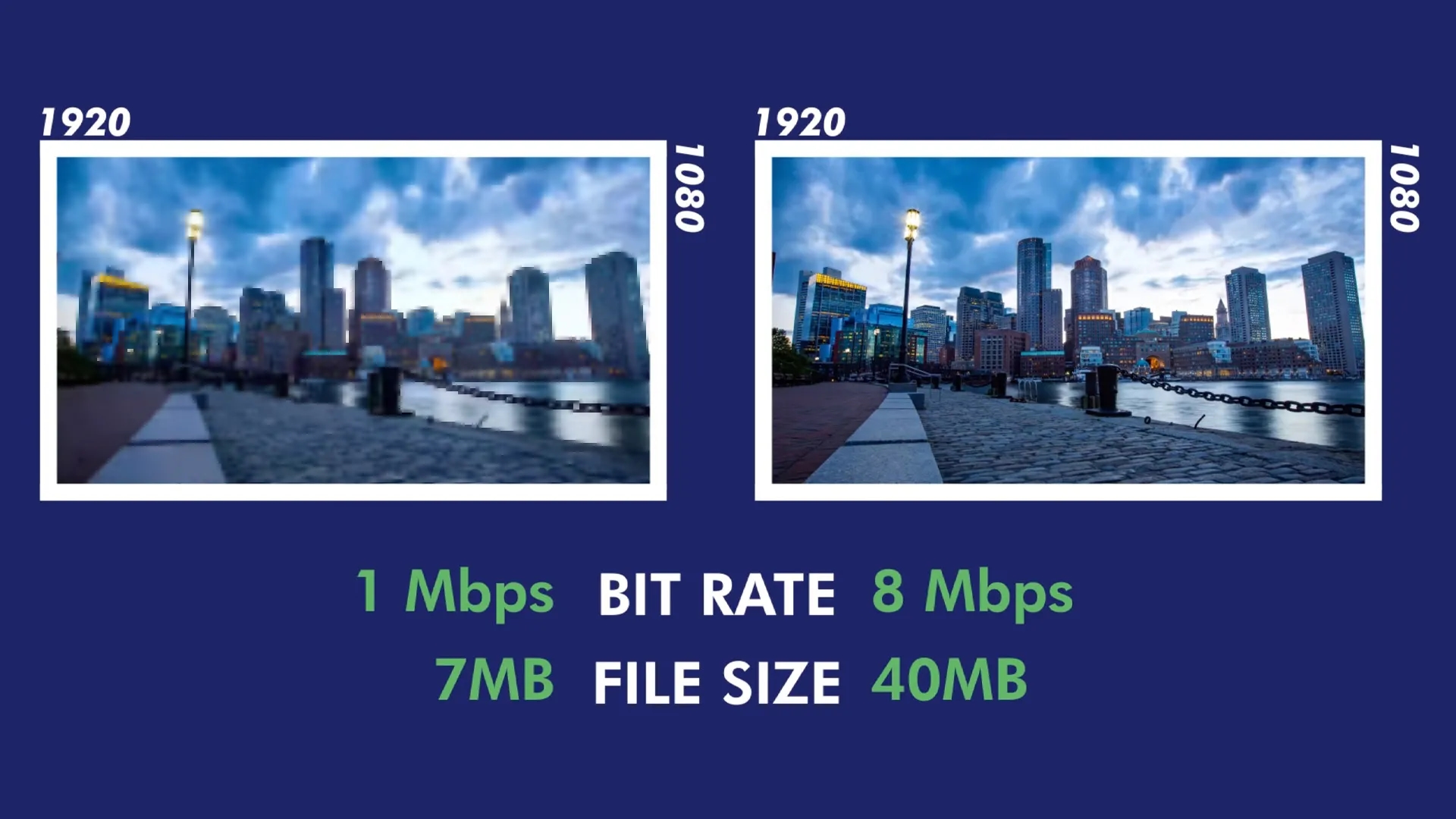
Here's the key takeaway: a 4K video at a low bitrate can actually look worse than a 1080p video at a high bitrate. More pixels need more data to look good. If you crank up the resolution but keep the bitrate low, the encoder spreads too little data across too many pixels, and quality suffers.
So when people say a video looks "low quality," the cause is often a low bitrate, not low resolution.
Does higher bitrate always mean better quality?
No. Higher bitrate improves quality only up to a point. Once the bitrate is high enough to fully describe the footage, adding more data gives you diminishing returns. You just get a bigger file with no visible improvement.
There's also the platform factor: if YouTube, Instagram, or your client's website re-compresses the video, exporting at an extreme bitrate is wasted effort. The platform throws the extra data away. The goal is to use enough bitrate to keep your footage clean through that final compression, not to max out the slider.
What causes low bitrate problems in video?
Low bitrate problems usually come from exporting at a bitrate too low for your content's complexity. The most common symptoms are blocky artifacts (especially in dark or fast-moving areas), color banding in skies and gradients, and smearing during motion.

The fix is to raise your export bitrate or switch to VBR 2-pass encoding so the data goes where it's needed most.
What is a good audio bitrate?
For most online video, 192–320 kbps for audio is the sweet spot. 320 kbps is effectively transparent for music, while 128 kbps is acceptable for speech-only content like podcasts or voiceover. Going higher rarely produces a noticeable difference for typical viewers.
Does bitrate affect editing performance?
Yes, but in a different way. High-bitrate source footage (like 4K from a high-end camera) requires more processing power to play back smoothly in your timeline. If your editing software stutters, working with proxies (lower-bitrate stand-in files) during editing and switching back to the full-bitrate originals for export is a common solution.
Final thoughts
Bitrate is the amount of data used per second of video, and it's the main lever controlling the trade-off between quality and file size. Match your bitrate to your resolution, frame rate, and the platform you're uploading to, and your exports will look exactly as good as your timeline does.
Related Posts

 Video Editing