Video File Formats Explained (and When to Use Each)


Table of Contents
- First, the one thing everyone gets confused about: container vs. codec
- 1. MP4: the safe default for sharing
- 2. MOV: the editor's friend
- 3. AVI: the legacy format
- 4. MKV: the archiving and subtitle king
- 5. WebM: the web-first option
- 6. ProRes & DNxHD/DNxHR: the editing heavyweights
- 7. Best format by use case: the cheat sheet
- Final thoughts
- Spotlight FX - Get free transitions, effects and workflow tools
If you've ever exported a video and stared at a dropdown full of MP4, MOV, AVI, and a dozen codec options, you're not alone.
Most "best format" debates online are overcomplicated. The truth is, the right choice depends on one thing: what you're doing with the file.
I edit video every day, and I've cut through the noise to give you a simple, practical breakdown. By the end of this post you'll know exactly which format to pick for editing, for YouTube, for social, and for archiving, without second-guessing yourself.
First, the one thing everyone gets confused about: container vs. codec
Before the list, you need to understand this distinction, because it explains why "MP4 vs MOV" is kind of the wrong question.
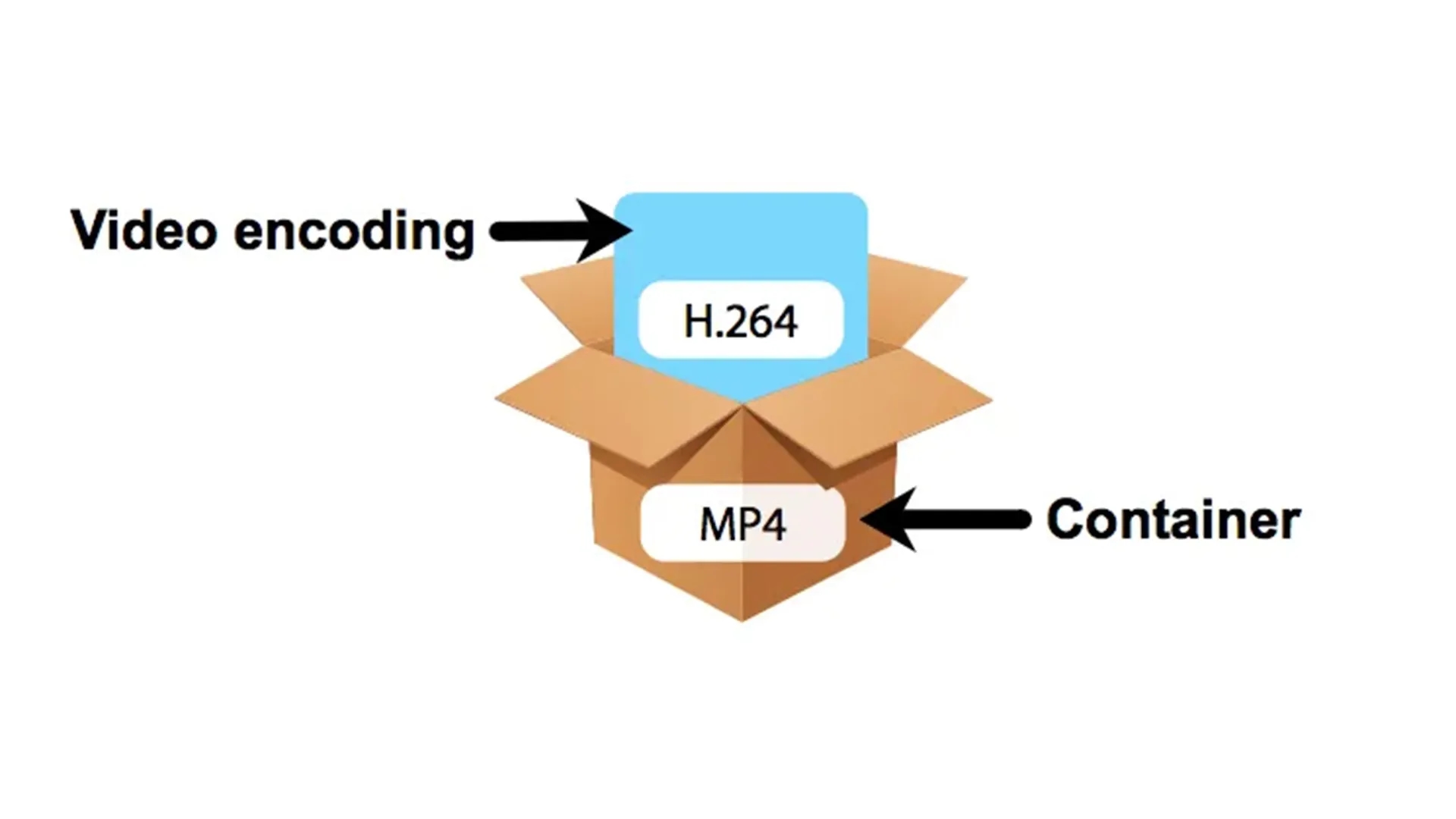
- A container is the file wrapper. It's what holds everything together: the video, audio, subtitles, metadata. MP4, MOV, AVI, MKV, and WebM are all containers.
- A codec is the compression method inside the container. H.264, HEVC, AV1, ProRes, VP9, these are codecs.
So an MP4 file might contain H.264 video. A MOV file might contain ProRes. Same idea as a box (container) holding different things (codec) inside it.
Why this matters: the codec usually affects your file size and quality more than the container does. Keep that in the back of your mind as we go through each one.
1. MP4: the safe default for sharing
If you only remember one format, make it MP4.

Best for: General sharing, streaming, social media, sending to clients, basically anything where the file needs to "just play."
What we like: Universal compatibility. MP4 plays on virtually every device, browser, and platform on earth. Paired with the H.264 codec, you get a great balance of quality and small file size. It's the format you can hand to anyone without worrying about whether they can open it.
What to watch for: It's not built for heavy editing. MP4 + H.264 is compressed, so it's not ideal as an editing intermediate if you're doing lots of color grading or re-rendering.
Pro tip: For nearly every YouTube and social upload, MP4 + H.264 + AAC audio is the safest export you can choose. When in doubt, this is the combo.
2. MOV: the editor's friend
MOV is Apple's container, and it's the natural home for professional editing workflows.

Best for: Editing on Mac and pro pipelines, especially anything involving ProRes.
What we like: MOV is a native fit for high-quality codecs like ProRes, which makes it excellent inside macOS and iOS editing pipelines. If you're cutting in Premiere Pro or After Effects on a Mac, MOV files feel right at home.
What to watch for: It's less universally compatible than MP4. Windows machines sometimes need extra software to play MOV files smoothly, so it's not the format you'd send to a random client for quick review.
3. AVI: the legacy format
AVI is the grandparent of video formats. It still works, but it's showing its age.
Best for: Legacy systems and older workflows where AVI is specifically required.
What we like: It's still supported in plenty of environments, so old files won't disappear on you.
What to watch for: Large file sizes, an older design, and weaker support for modern compression and features. There's almost no reason to choose AVI for new projects in 2026.
Bottom line: Avoid AVI unless you're working with a system that demands it. There's a better option for every modern use case.
4. MKV: the archiving and subtitle king
MKV (Matroska) is the format you reach for when you need flexibility over compatibility.

Best for: Archiving, files with subtitles, and videos with multiple audio tracks.
What we like: It's incredibly flexible. MKV can hold many video, audio, and subtitle tracks plus rich metadata, all with minimal container overhead. Great for storing master files or multi-language versions.
What to watch for: It's not as universally supported in browsers or in QuickTime, so it's a storage and archive format, not a "send it to everyone" format.
5. WebM: the web-first option
WebM is built specifically for the web, and it's open and royalty-free.

Best for: Web-first delivery where you control the playback environment.
What we like: It's efficient, especially with the VP9 or AV1 codecs, so you get small files at good quality. Since it's open and royalty-free, it's popular for browser-based delivery.
What to watch for: Limited support on iOS and many social platforms. It's not the format to upload to Instagram or hand off to a client, but it shines for self-hosted web video.
6. ProRes & DNxHD/DNxHR: the editing heavyweights
These are codecs, not containers, but they deserve their own spot because they're what serious editing runs on.
Best for: Editing, color grading, and mastering.
ProRes is near-lossless and preserves a huge amount of image data, which means it holds up beautifully through repeated renders and color work. It's designed for post-production, not final delivery.
DNxHD / DNxHR are the common professional intermediate codecs on Windows and Avid workflows, often wrapped in MXF or MOV containers.
What to watch for: These files are big. Like, very big. You edit with them, then export a much smaller delivery file (usually MP4 + H.264) when you're done. Don't upload ProRes to YouTube.
The practical workflow in 2026: edit in ProRes or DNxHD/DNxHR, then export your final delivery file as MP4 + H.264 for nearly all uploads.
7. Best format by use case: the cheat sheet
Here's the whole thing distilled into a table you can bookmark.
Use case | Best choice | Why |
|---|---|---|
Maximum compatibility / sharing | MP4 + H.264 | Plays everywhere, great quality-to-size balance |
Editing on Mac / pro workflow | MOV + ProRes | Preserves image data through repeated renders |
Editing on Windows / Avid | DNxHD / DNxHR | Standard professional intermediate codecs |
YouTube upload | MP4 + H.264 | Safest, most compatible upload format |
4K delivery | MP4 + HEVC (H.265) | Smaller files at similar quality |
Smaller web files | WebM + VP9/AV1 | Efficient, royalty-free, web-friendly |
Archiving / subtitles / multi-audio | MKV | Flexible, holds many tracks and metadata |
Legacy systems only | AVI | Still supported, but outdated |
Bonus: quick export presets for Premiere Pro
Since most people reading this are exporting to upload somewhere, here are practical starting points:
- YouTube 1080p: H.264, 1920 × 1080, VBR 2-pass, ~8 Mbps target / 12 Mbps max
- YouTube 4K: H.264, VBR 2-pass, ~40 Mbps target / 45 Mbps max
- YouTube Shorts / TikTok: H.264, 1080 × 1920 vertical, ~8 Mbps target
- Instagram Reels: 1080 × 1920 vertical, HEVC (H.265), ~30 Mbps for 24/30 fps or 50 Mbps for 60 fps
- Audio (all of the above): AAC, 48 kHz, stereo, 320 kbps
A simple shortcut: start with the Match Source – Adaptive High Bitrate preset for YouTube and most social exports, then adjust frame size and bitrate per platform.
Final thoughts
Here's the takeaway most "best format" guides bury: for 90% of creators, the answer is just edit in a high-quality format, deliver in MP4 + H.264. Everything else is fine-tuning for a specific situation.
One last tip that'll save you headaches: don't re-export the same MP4 over and over. Every time you re-compress an already-compressed file, you lose a little quality. Keep a master file (ProRes or MOV) and export fresh MP4s from that whenever you need a new version.
And remember, the format only matters once your edit looks good. If you're spending more time wrestling with files than actually creating, that's a sign your workflow needs help, not your export settings.
Related Posts
 Video Editing
What is Chromatic Aberration in Games? Everything You Need to Know
 Video Editing